

Managing your finances just got easier with UniFi's new scheduled payments feature. Whether you're planning ahead for bills or setting up regular transfers, our step-by-step guide makes it simple.
1. Sign up for UniFi
First, if you're not already using UniFi, sign up. It's free, and you get lots of useful features like:
- Multiple checking accounts.
- Debit cards you can use anywhere.
- Easy transfers between your accounts and to other banks.
- No extra fees or minimum amount needed in your account.
Click here to sign up for free.
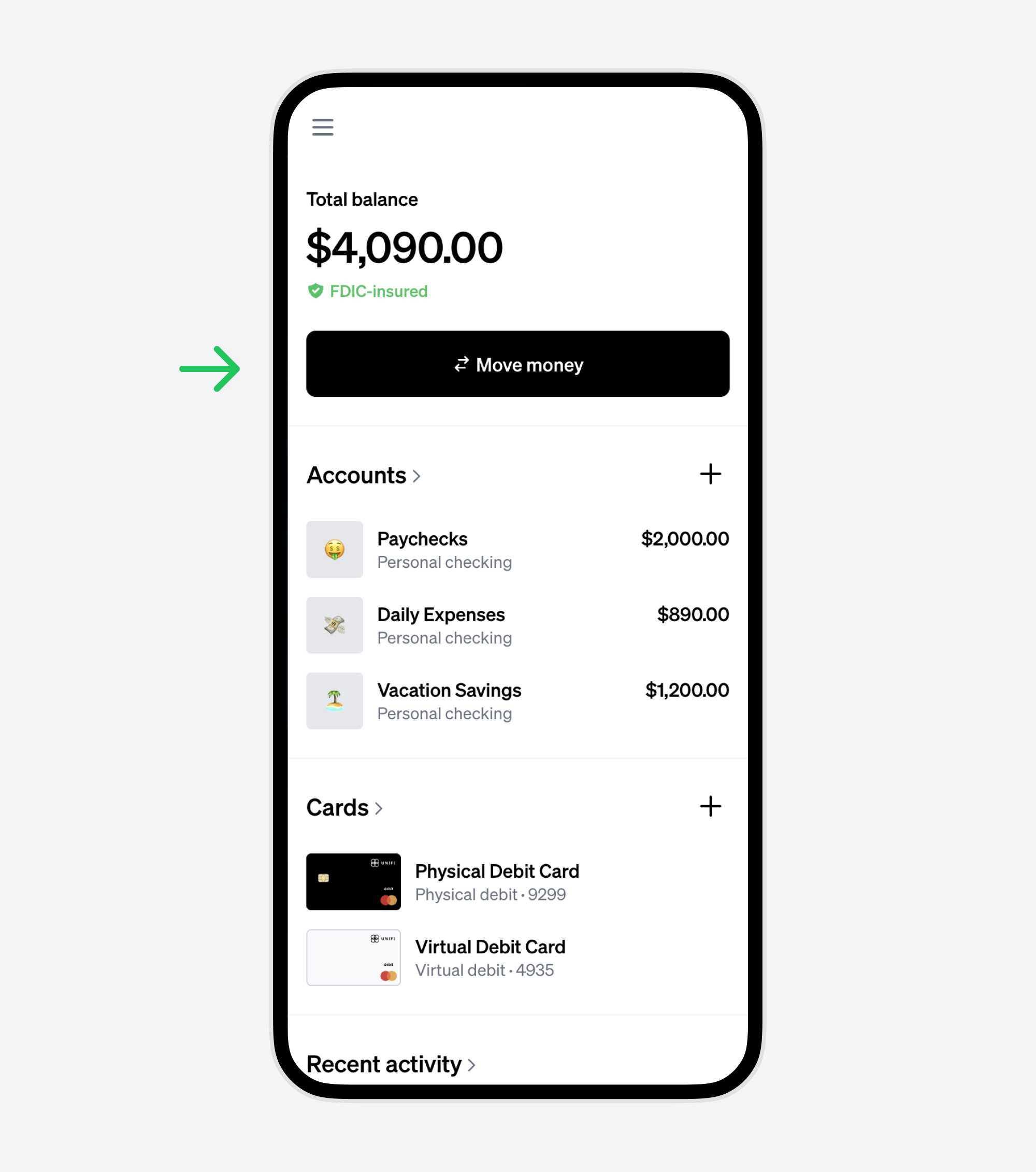
2. From the dashboard, click the "Move money" button
This button lets you handle all money-related tasks. You can transfer between your accounts, send money using email addresses, and more.
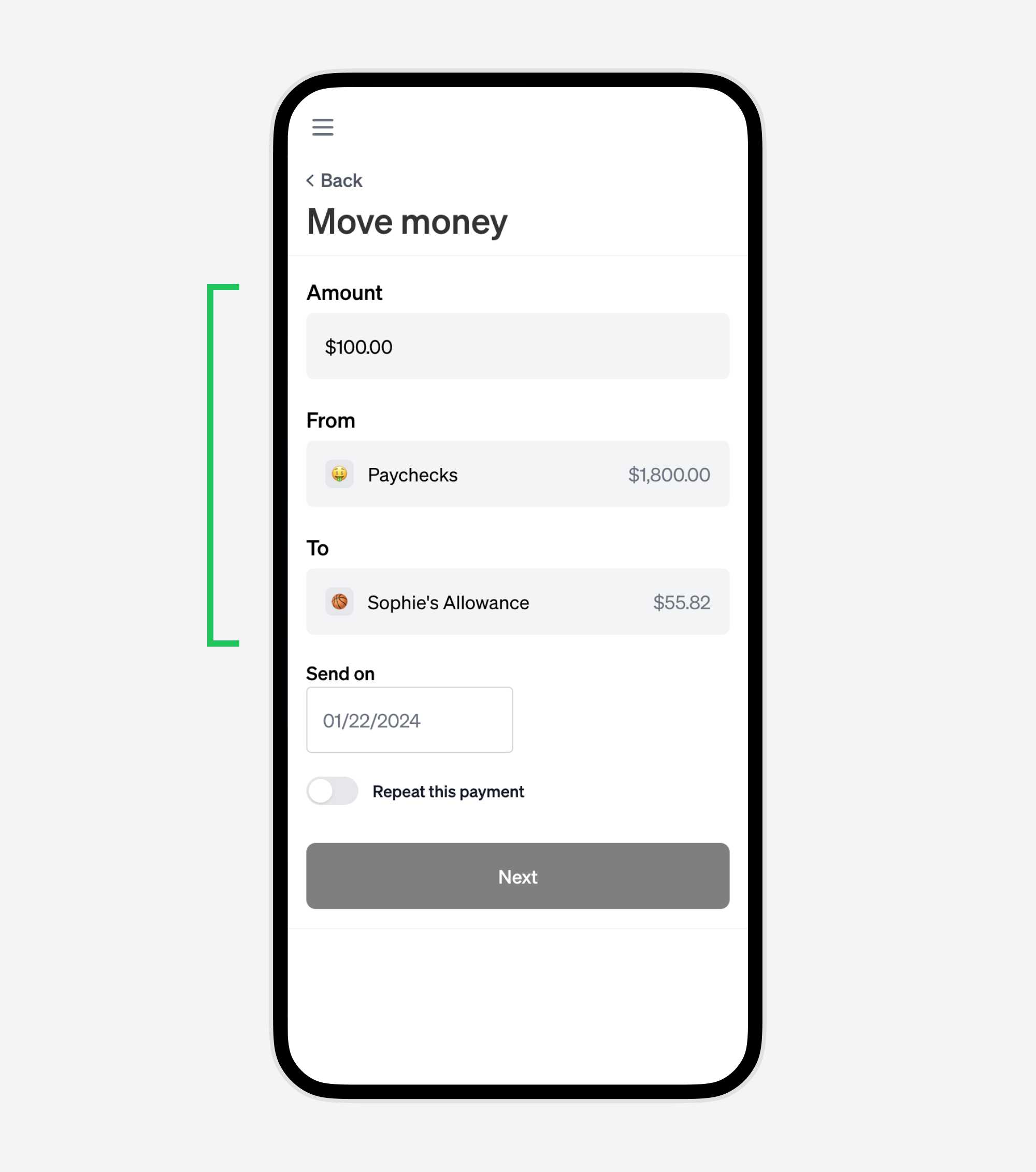
3. Choose the amount and the accounts
Select the amount, source, and destination accounts.
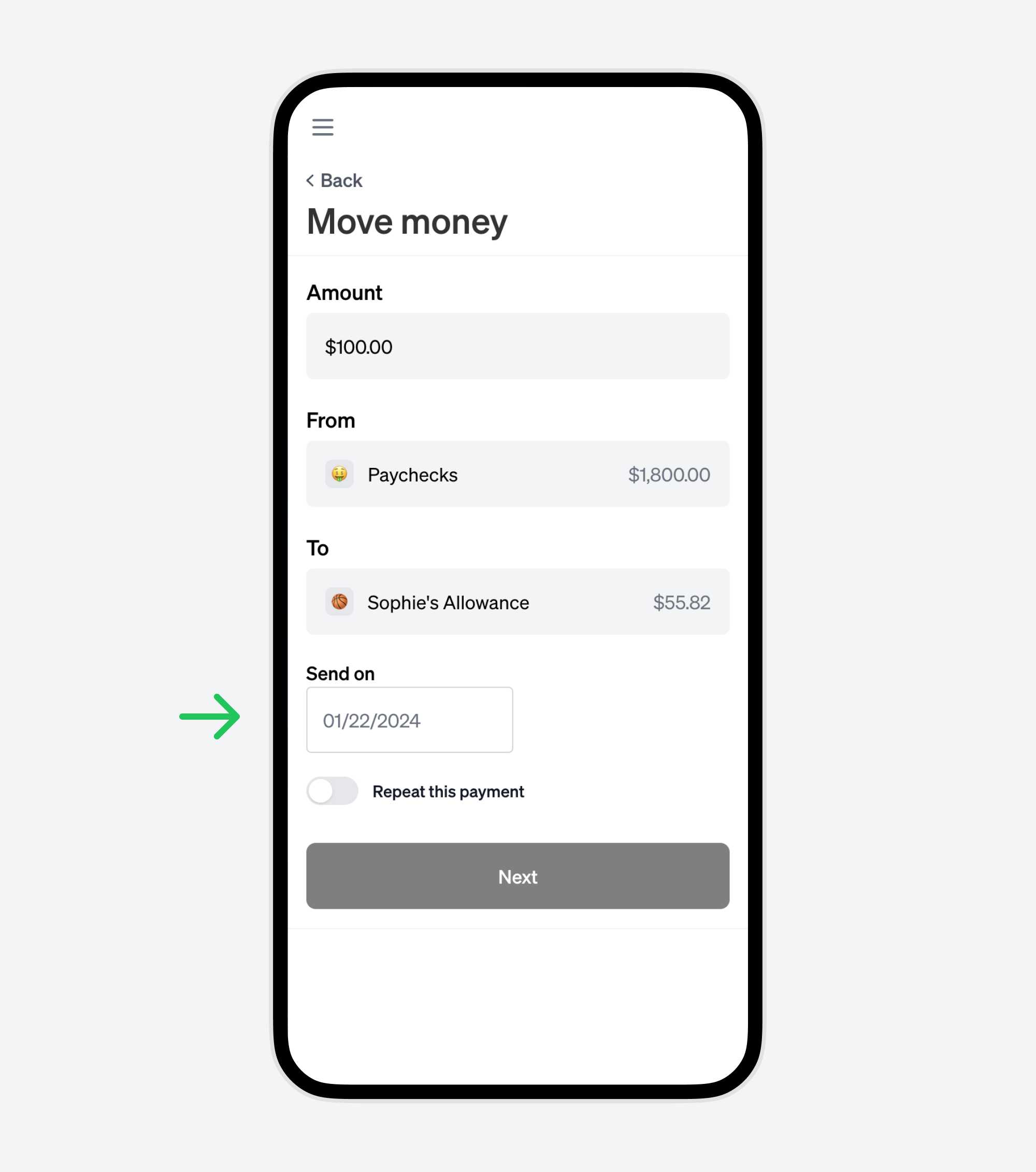
4. Click the date to change it
By default, the transfer goes through today. Click the date to use the calendar and schedule it for the future.
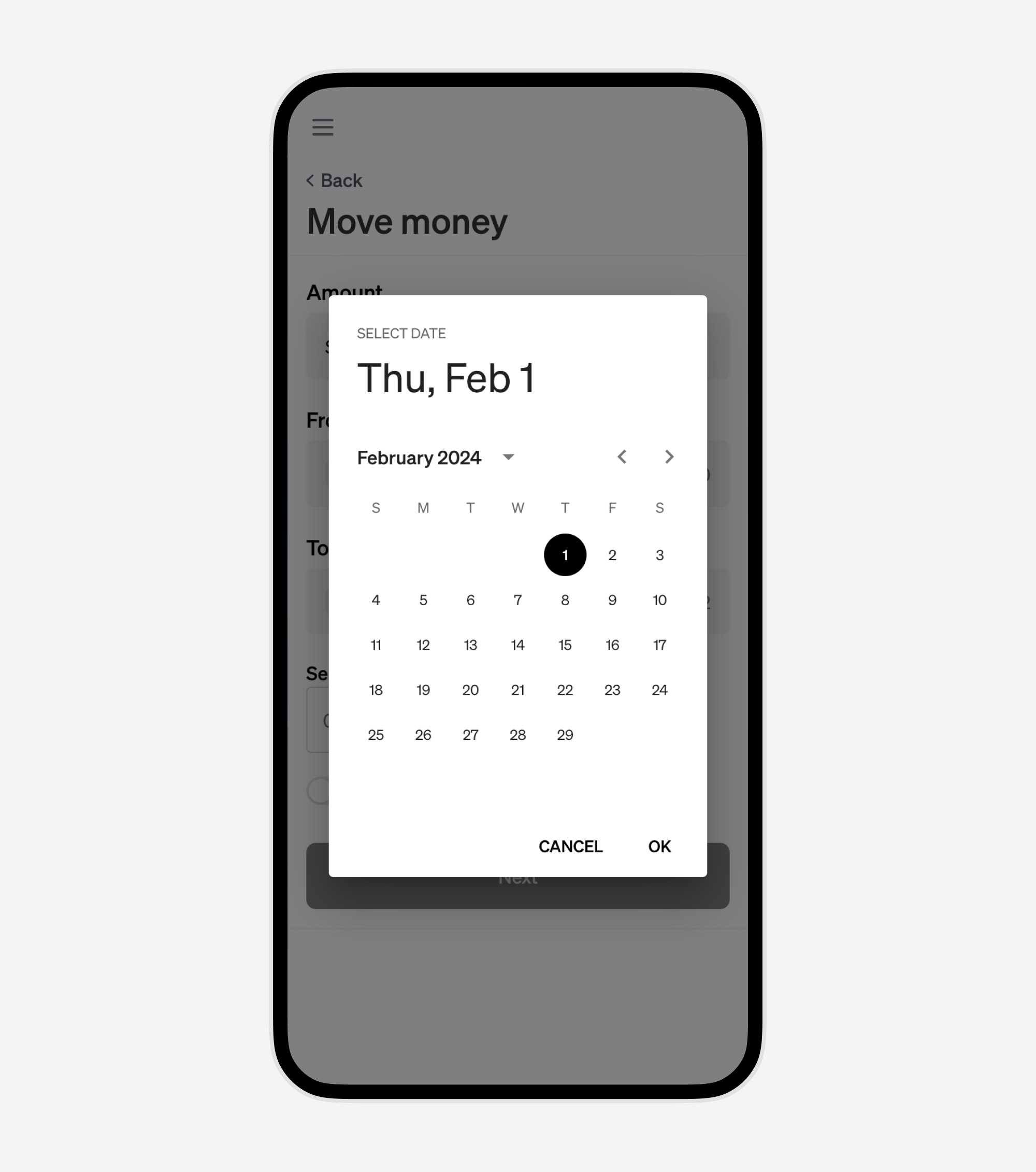
5. Choose the transfer date
Select any future date using the calendar.
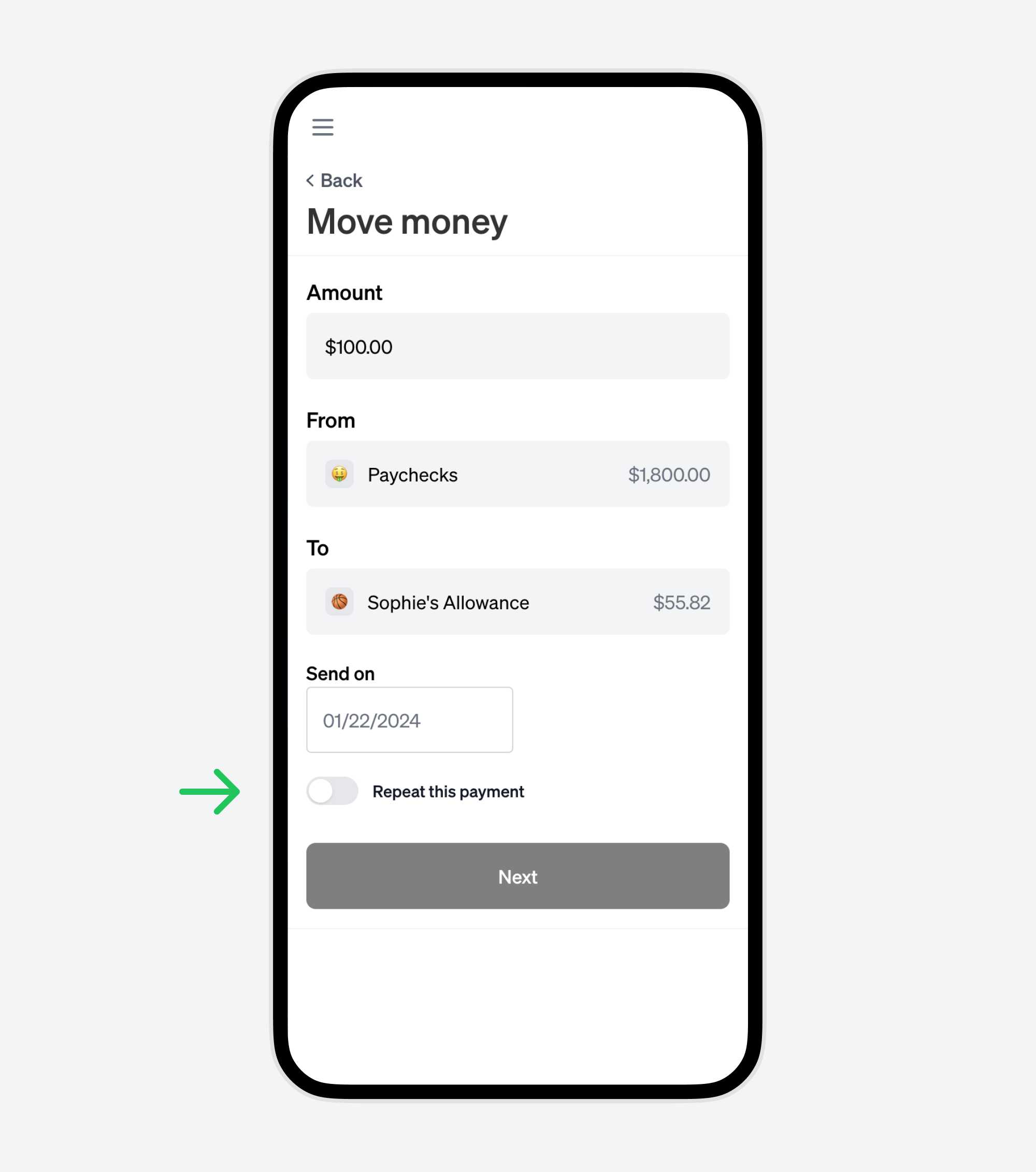
6. Set the transaction to repeat (optional)
Toggle "Repeat this payment" for recurring transfers and select the frequency.
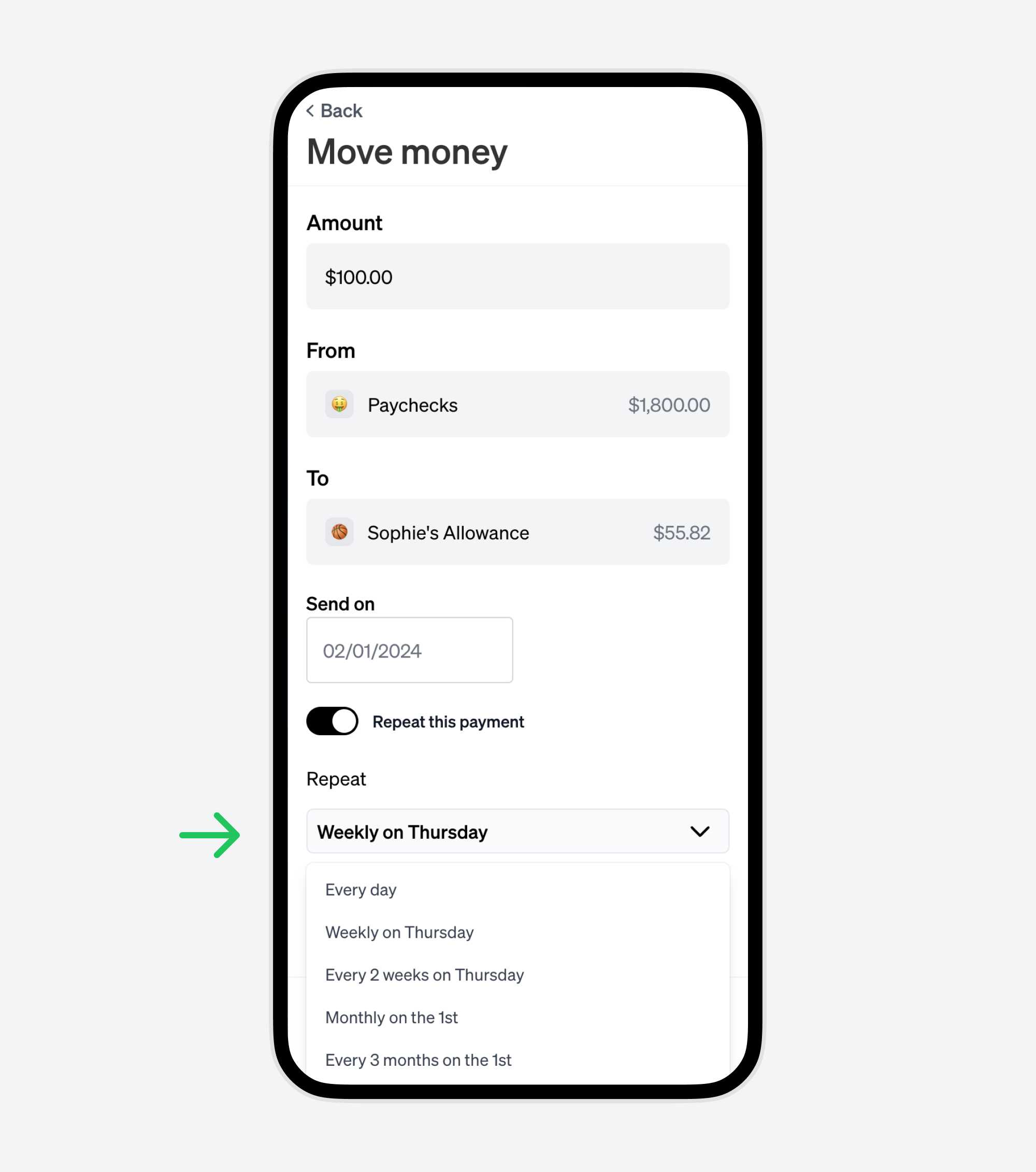
7. Choose the repeat frequency
Click the dropdown to pick how often the payment repeats. You have various options to match your needs.
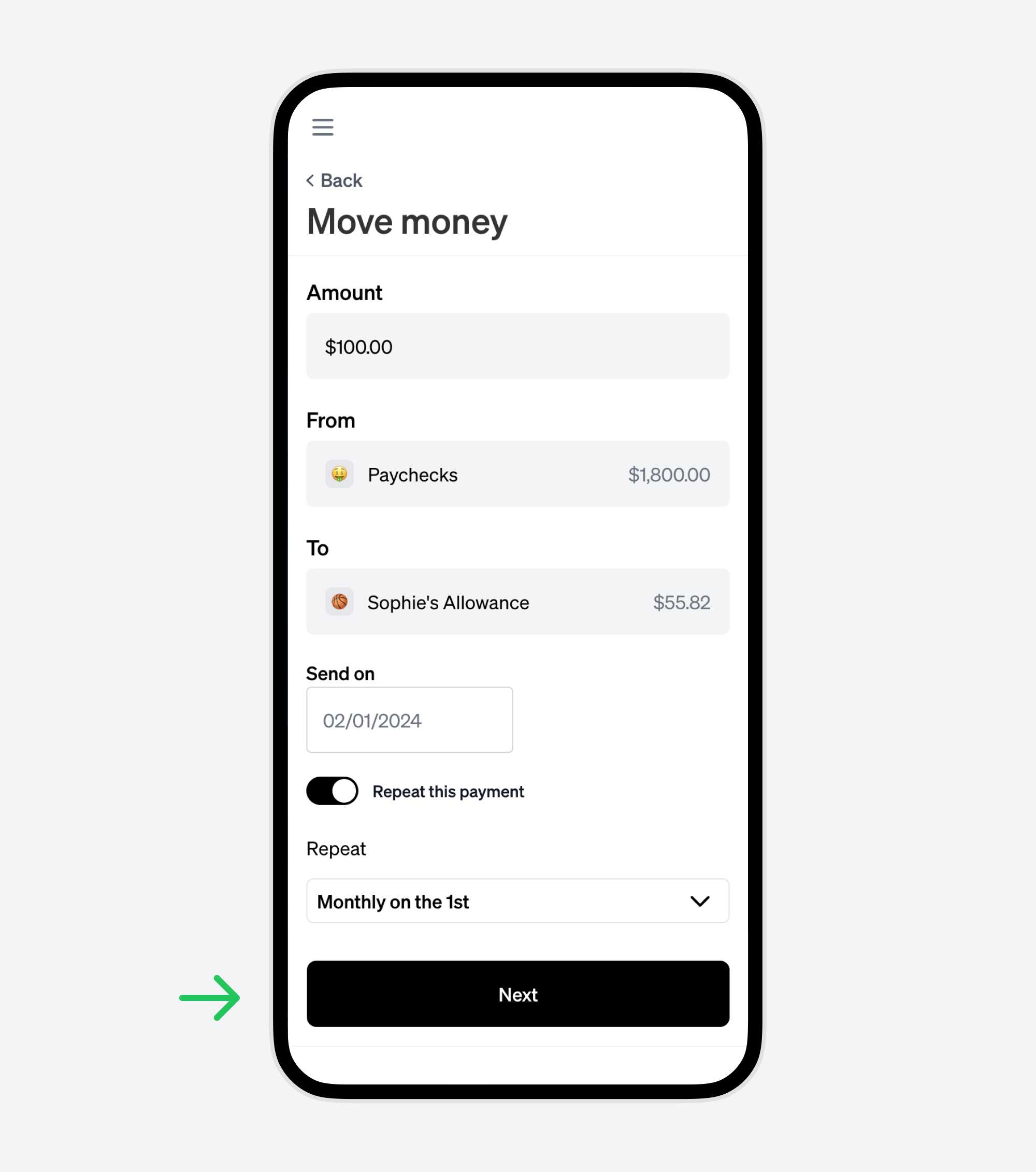
8. Click the "Next" button
Review the transaction on the next step before scheduling it.
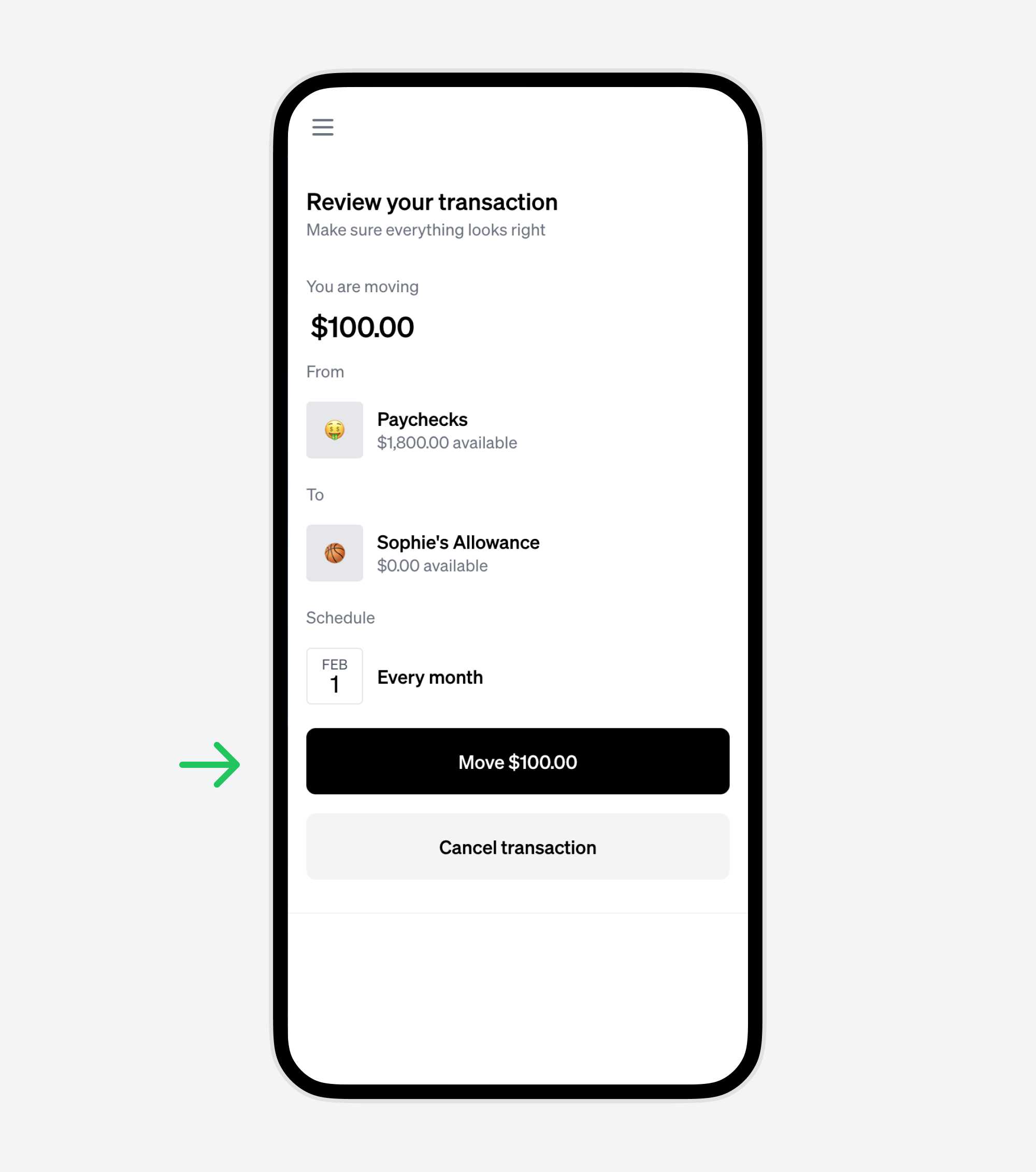
9. Review and confirm the transaction
Make sure the amount, accounts, and schedule are correct. If everything looks good, click the black button.
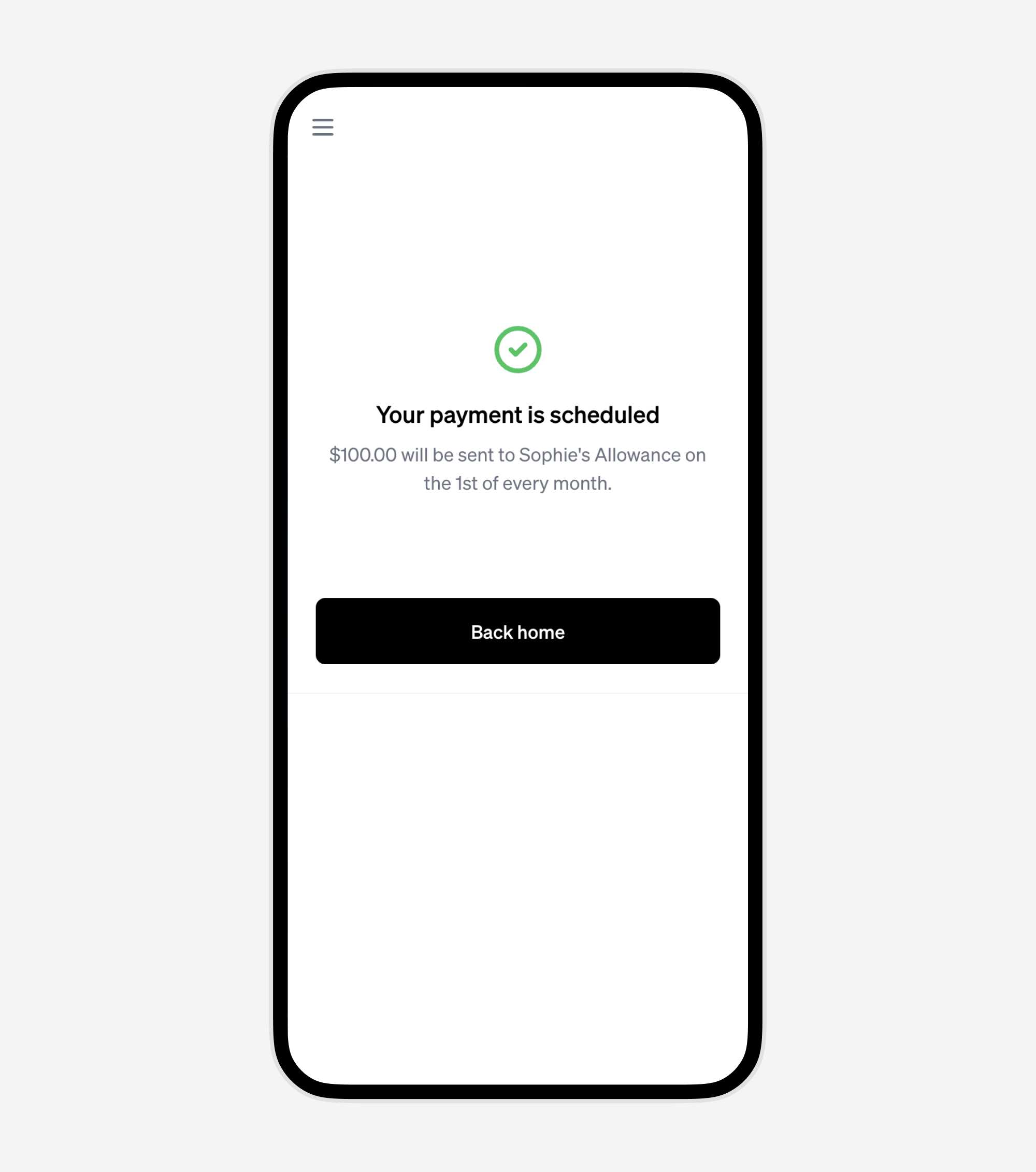
10. Your payment is scheduled!
How to manage your scheduled payments
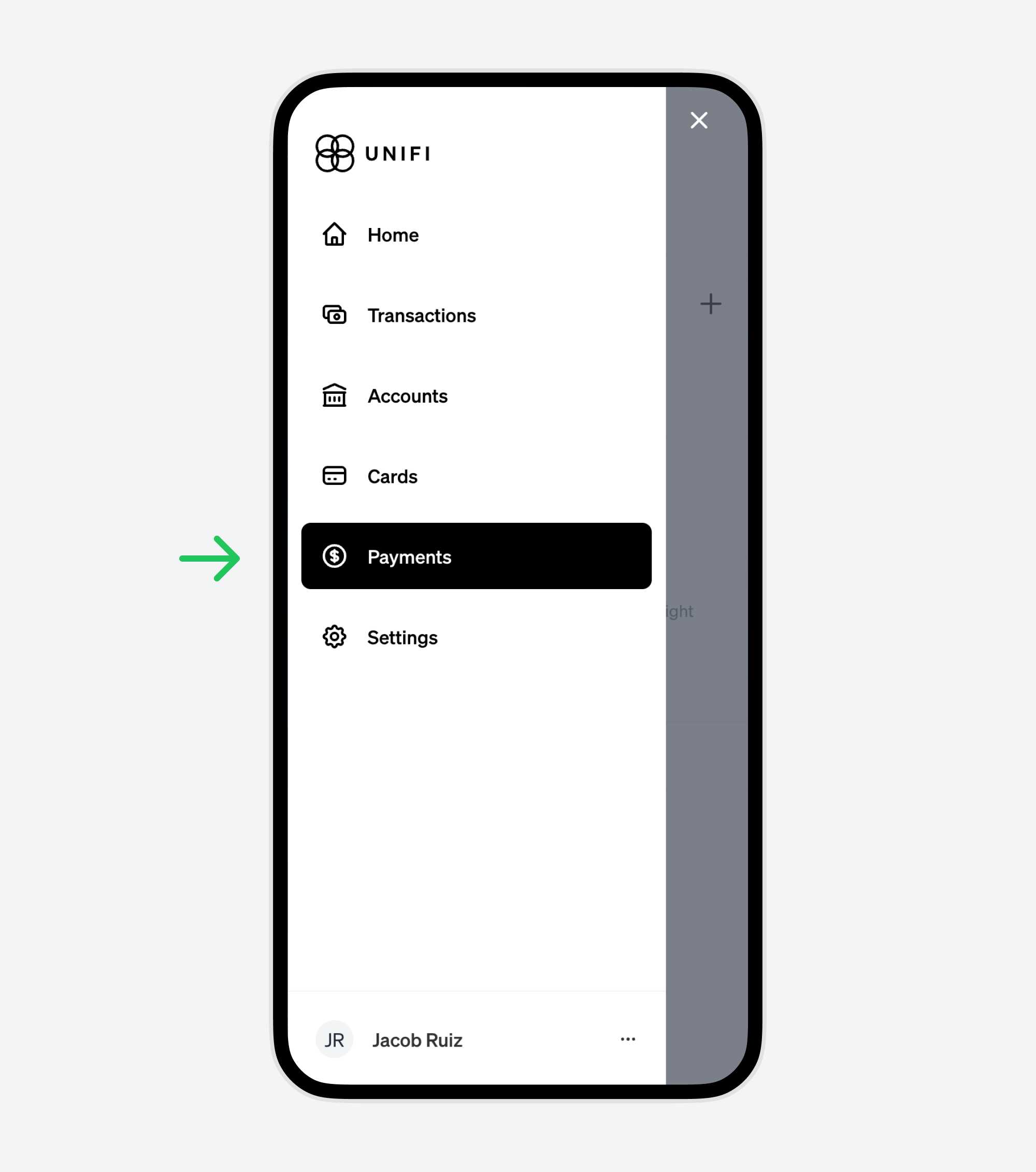
To view all your scheduled payments, visit the "Payments" tab from the navigation menu. Let's walk through it step by step.
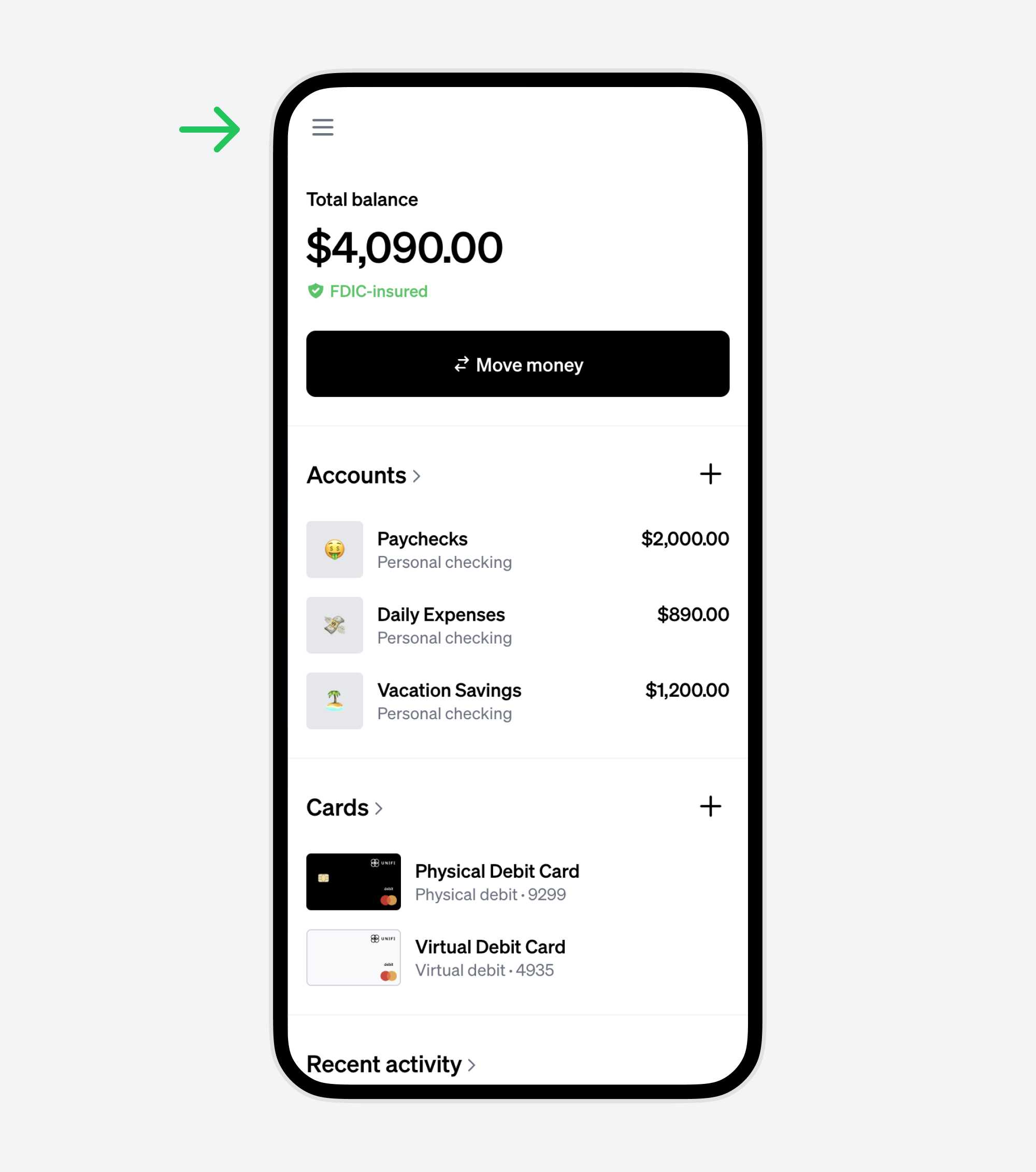
Click the menu icon in the top left
This reveals the navigation menu on your phone or tablet. If you're on your computer, you should already see the navigation menu on the left side of the screen.
Choose the "Payments" tab
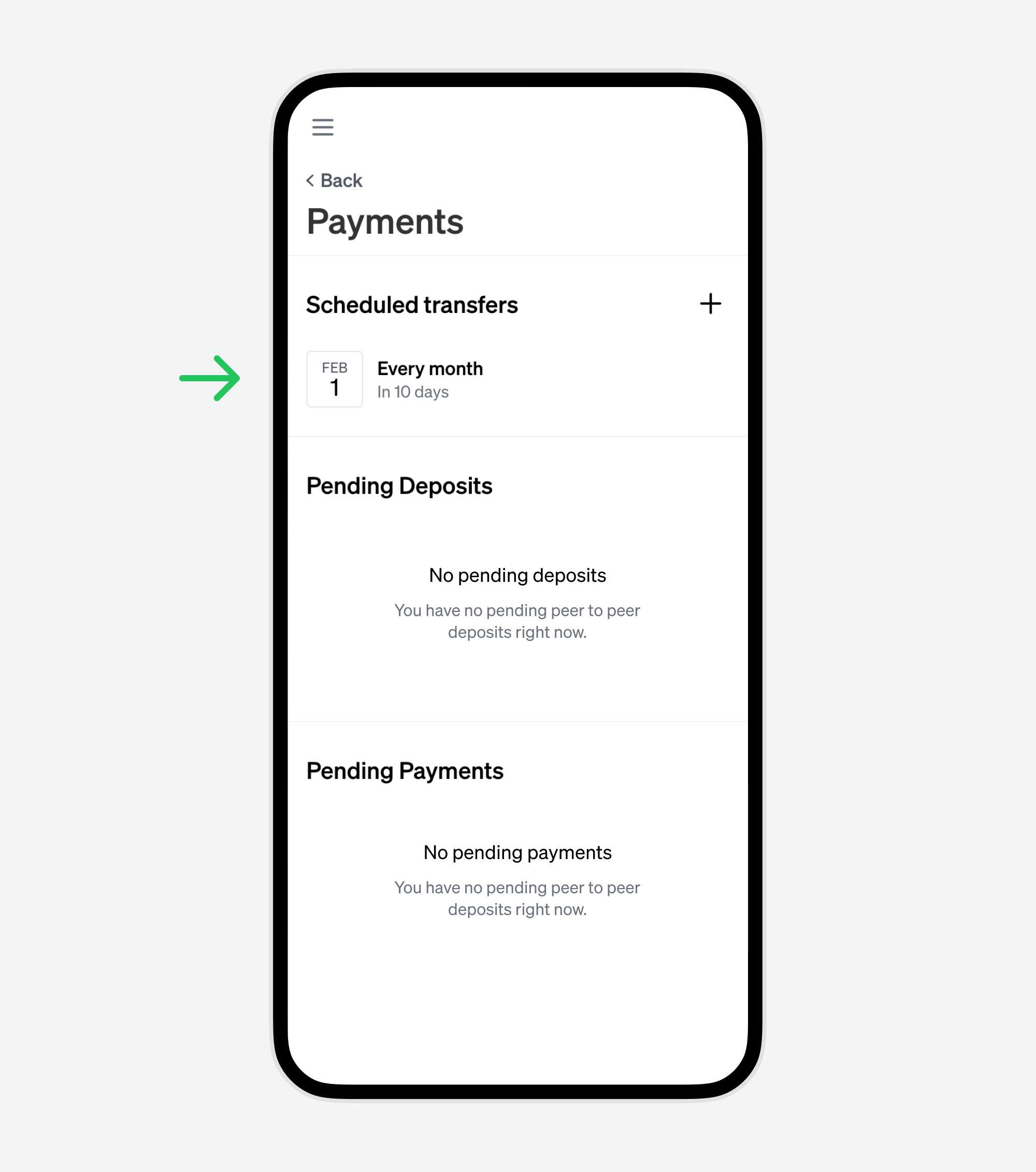
The Payments screen shows all of your scheduled payments
Click an individual scheduled payment if you'd like to see more details.
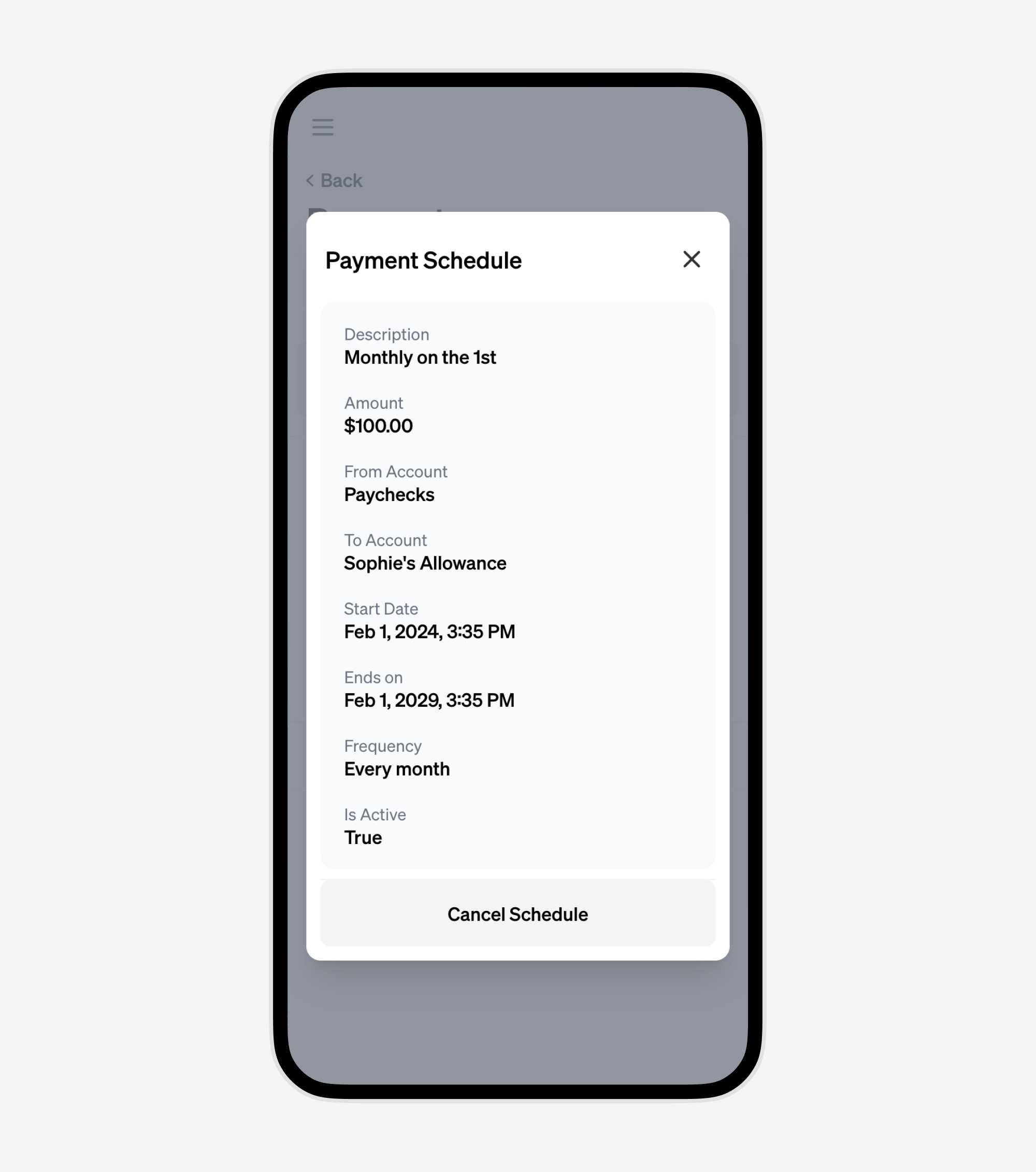
Viewing the schedule details
From this detail view, you can see important information like the amount, accounts, start date, end date, frequency, and whether the schedule is active.
You can also cancel the schedule from here.
Start using scheduled payments today
With UniFi's scheduled payments, you get control and flexibility over your financial transactions. Plan your payments in advance and rest easy knowing your financial commitments are taken care of automatically.
Here are some ways customers use scheduled payments to make life easier:
- Paying Rent: Automatically send your monthly rent payment to your landlord.
- Teenager's Allowance Fund: Regularly add money to your teenager’s allowance account.
- Supporting a Relative via Shared Account: Send consistent financial support to a family member through a shared account.
- Monthly Utility Bills: Schedule payments for utilities like electricity, water, or internet.
- Credit Card Payments: Automate monthly credit card bill payments to avoid late fees.
- Loan Repayments: Set up scheduled payments for any personal or auto loans.
- Savings Contributions: Automatically transfer a set amount to your savings account.
- Subscriptions and Memberships: Manage recurring payments for services like gym memberships.
- Charitable Donations: Regularly donate to your favorite charity or cause.
- Mortgage Payments: Ensure timely mortgage payments each month to your lender.